Collaborating with another teacher on a Workspace Follow

This article guides teachers through the steps for sharing a Workspace with another teacher in Hāpara.
In this article:
Overview
If you have an assigned co-teacher, you can collaborate in a Workspace.
Co-teachers in a class are added to a Hāpara Workspace for that class automatically.
You can also add a teacher manually from the Workspace sidebar. Visit the Teachers section on the left side of the Workspace to add the teacher.
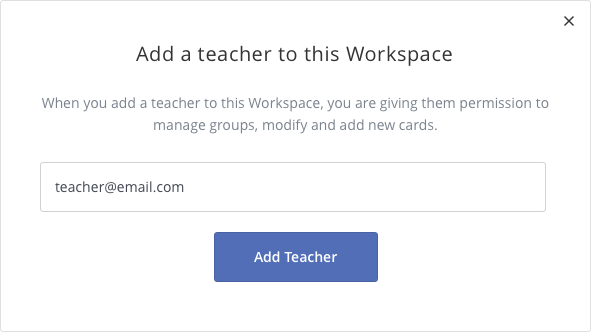
When you manually add a co-teacher to a Workspace, you are giving them permission to manage groups, modify the Workspace and add new cards.
Steps for sharing a Workspace with another teacher
Open Hāpara Workspace. In the My Workspaces tab, you'll see a list of Workspaces under the category Owned by me. > Click on the Workspace you want to share.
In the left sidebar, find the Teachers section.
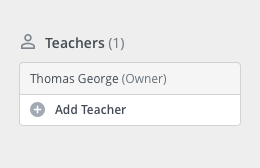
Click Add Teacher.
Enter the teacher’s school email address. > Click the blue Add Teacher button.
Verify that they appear in the Teachers list and can access the Workspace.
Additional tips
- Teachers: Co-teachers already associated with a class appear automatically in the Workspace. No extra setup is needed.
- Teachers: Ask co-teachers to sign in with their school account to avoid access issues.
- Teachers: If a co-teacher can’t see the Workspace, remove and re-add them. > Then have them refresh.
- Large departments: Agree on naming conventions (e.g., “Grade 8 Science – Cells”) to make shared Workspaces easier to find.