Shared device best practices (optional): step 1 Follow

To apply ephemeral mode to Devices (Chromebooks), use the User Data policy:
This is configured in the Google Admin console under:
Devices > Chrome > Settings > Device > User Data (Under Sign-in Settings)
Note: You only have access to this setting if you have purchased Chrome device licenses. The policy is applied for devices in a domain or an organisation/sub-organisation.
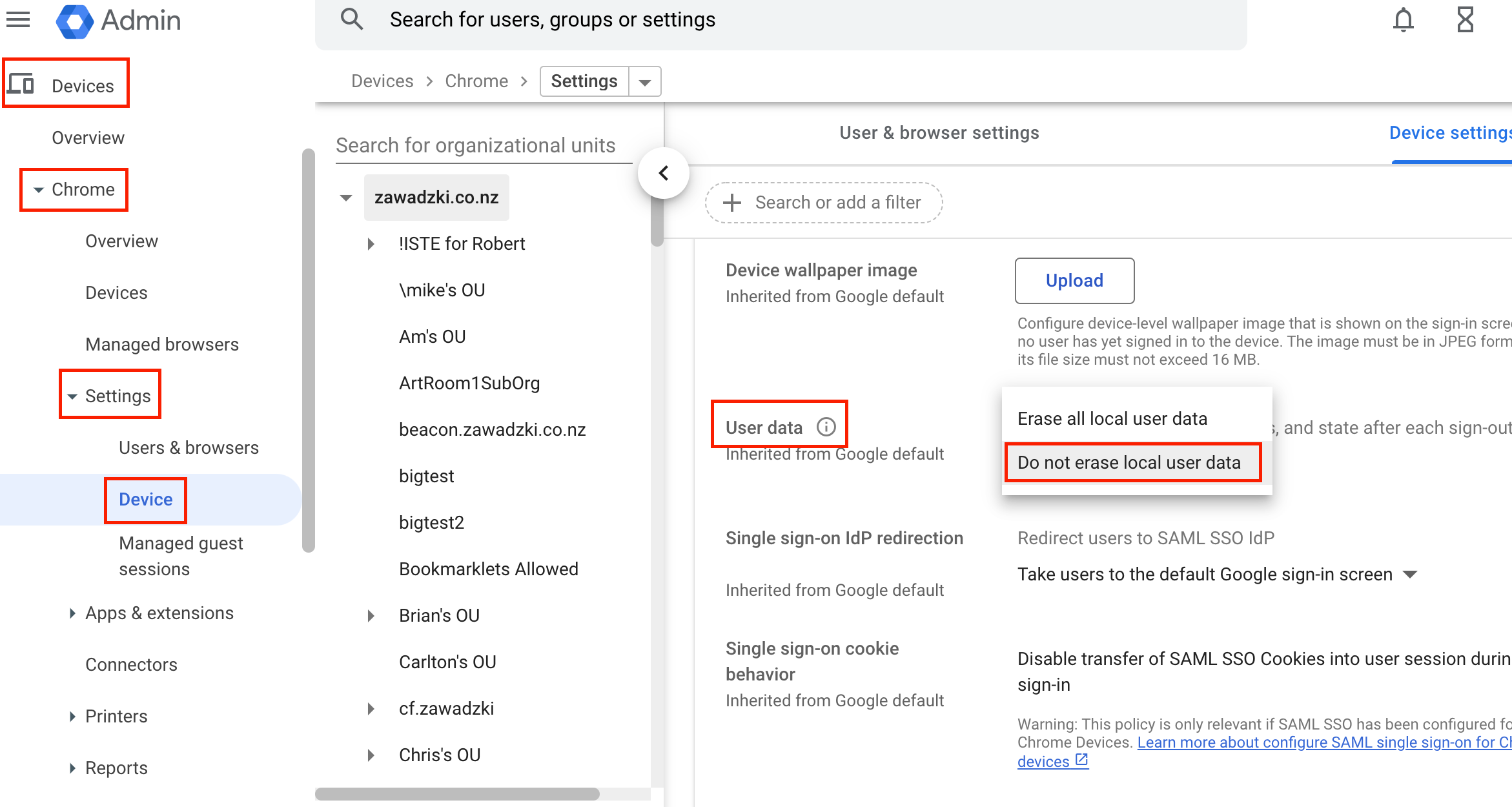
To use this policy set the value to Erase all local user info, settings, and state after each sign-out.
| ◀ Intro | ◉ ◉ ◯ ◯ | Step 2 ▶ |
| Highlights Installation Guide | |
| 1. Setting G Suite for Education policies → | 6. Shared device best practices (optional) (viewing) |
| 2. Pushing out the student extension → | 7. Privacy: time/IP restrictions → |
| 3. Verifying student extension connectivity → | 8. Enabling Highlights → |
| 4. Network access/whitelisting → | 9. Highlights browser compatibility → |
| 5. G Suite for Education device settings (optional) → | |